Mac OS X Lion – Overview

Mac OS X Lion has just been released and these are my thoughts of the new Mac operating system that I’ve been using for a couple of weeks now.

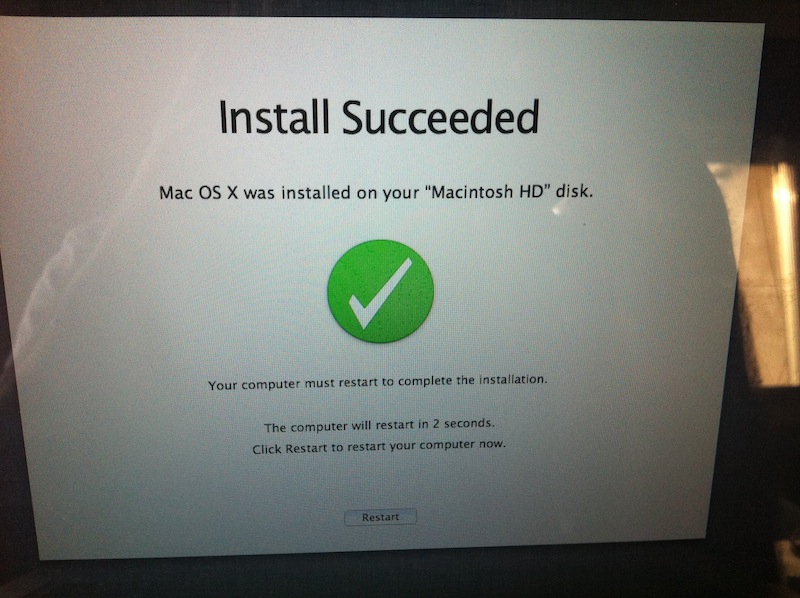
Installing Lion is a very easy task. You just run the installer that you download, input your administrator password and the OS automatically installs. Of course, it’s always advisable to back up your data beforehand since you never know what might go wrong but most probably nothing will.

Once the installation is done, you’ll be taken to a newly designed welcome screen where you enter your password and access your desktop.

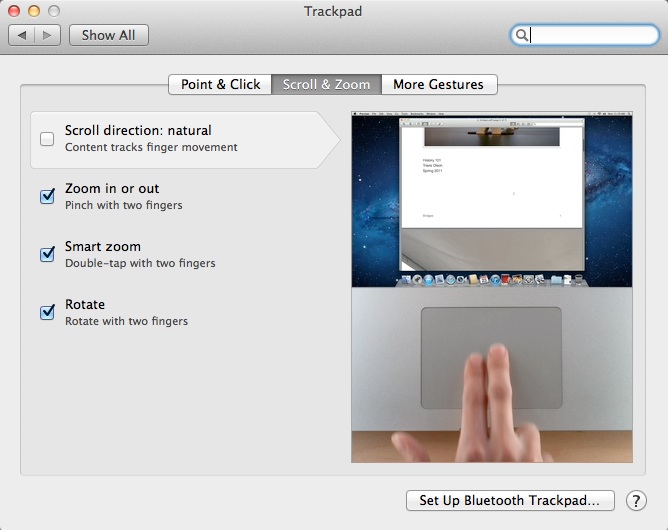
The first thing Lion welcomes you with is an introduction its new way of scrolling. However, Apple has decided to set the scrolling to “natural,” which, like the iPad, is actually the reverse of what you’re used to: scrolling up takes you down and vice versa. However, unlike the iPad, your Mac does not have a touch screen making the scrolling as set by Apple not “natural” at all. So I went to system preferences and changed it.
OS X Lion boasts many addition and tweaks that are truly great. But I think there are five which can be considered as the highlight of this update: Resume, Mission Control, Airdrop, Full Screen and Launchpad.

1 – Resume:

Have you ever shut down your laptop and regretted it because you didn’t have something saved? Well, with OS X Lion, you don’t need to worry about that anymore. Whenever you turn on your mac after shutting it down, you will be presented with the exact same state you left your mac in prior to shut down. Did you have iTunes, Twitter, Firefox and iPhoto running? They’d still be running and open to the tabs you were browsing, the tweets you were seeing and the songs you were selecting.

I’m the type of people who don’t like to turn off their laptops simply because I find the time it takes for them to boot and start launching my apps too long. With OS X Lion, I boot my Macbook Pro and before I know it, it’s as if I never turned it off. That is truly this update’s highlight. Sure, it’s not the most dazzling addition but in the long run, it’s the most useful one.
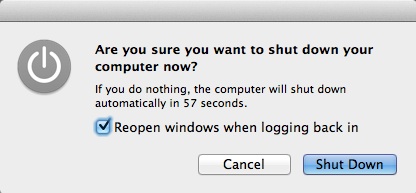
You can opt out of it before shutting down. But why would you?

2 – Mission Control:
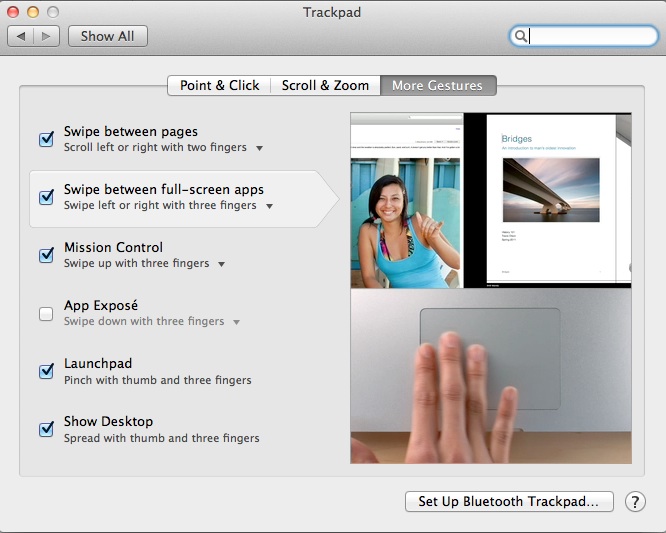
The negative thing about mission control is that it takes time to get accustomed with the new finger gestures. I had my mac set up for four-finger gestures: up removed all windows from my desktop, down took me to expose. With OS X Lion, the four-finger gestures are removed entirely and replaced with three-finger gestures.

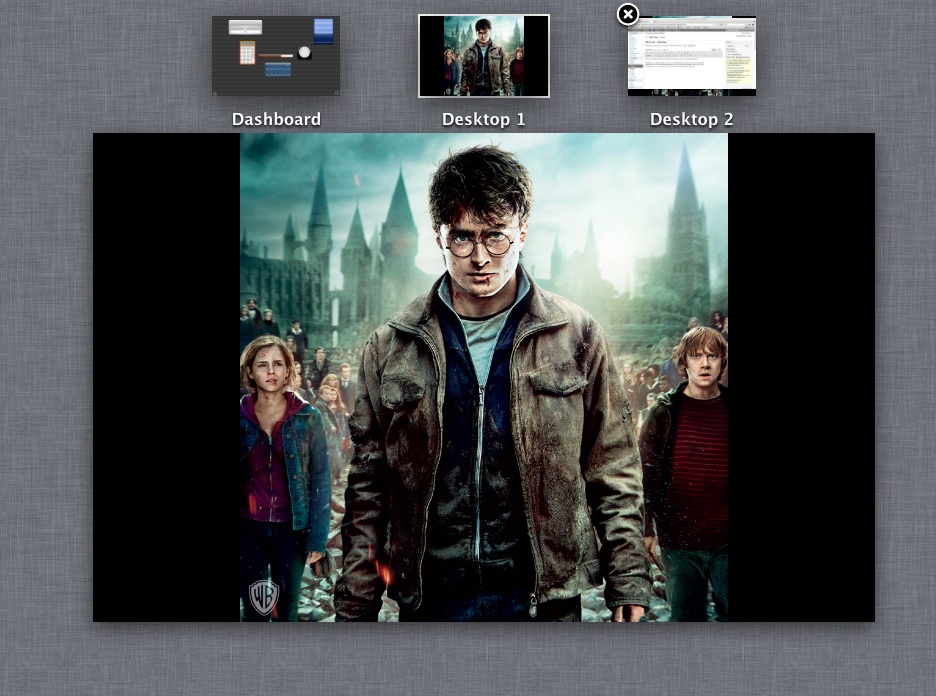
Going up with three fingers + thumb launches Mission Control.

Don’t mind my Harry Potter wallpaper. The movie is simply epic after all.
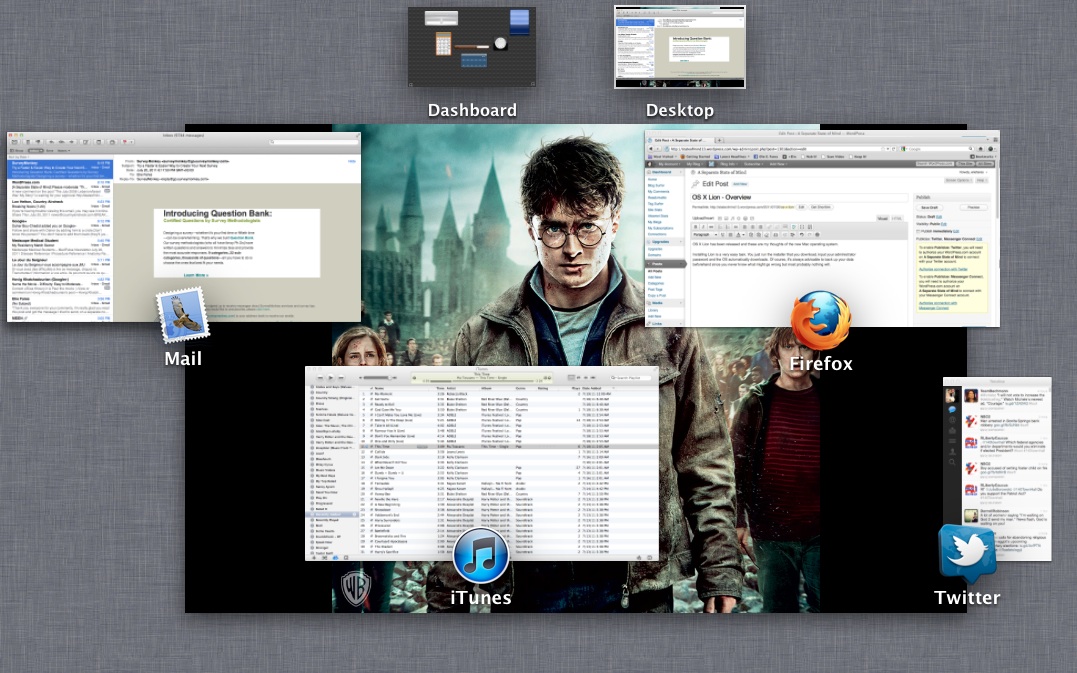
What Mission Control does is show you all of the windows and apps you’re working with, allowing you to organize them.

You can drag for example your internet browser and make a new desktop out of it.
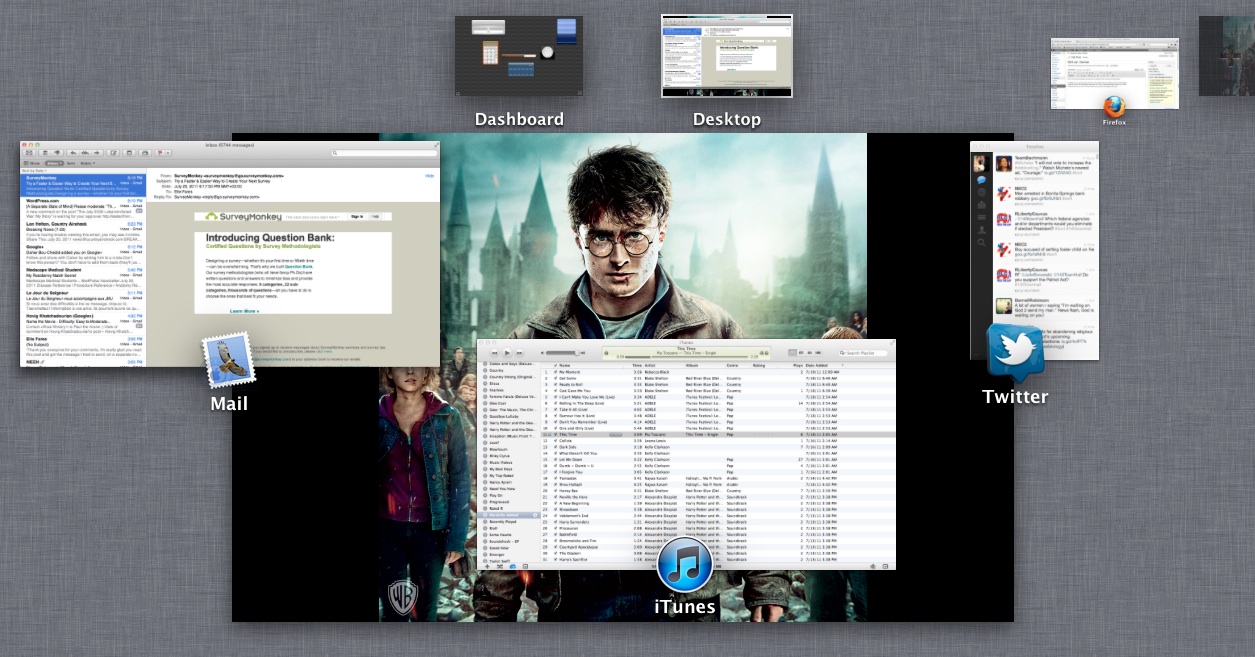
This new desktop can now be accessed via a two-finger swipe to the left (or right, depending on where you are).
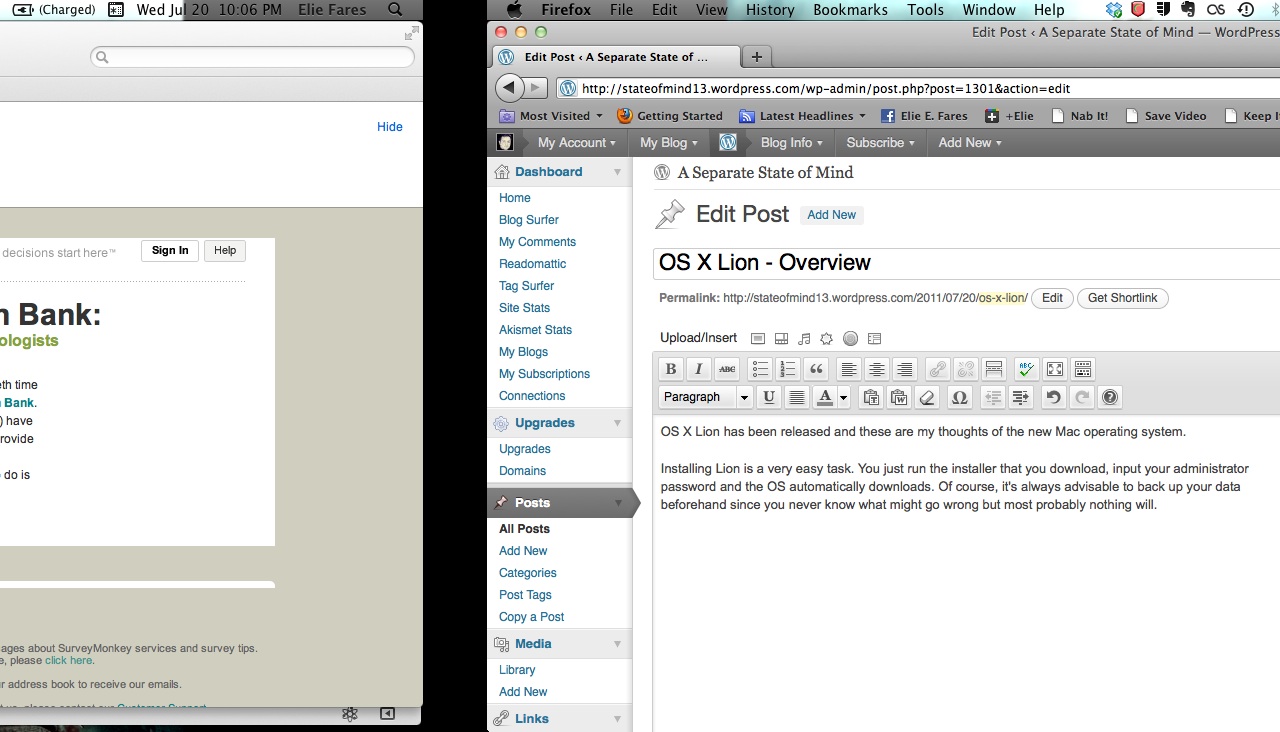
Mission Control is highly useful when you want to relieve yourself of clutter. Whenever you find yourself overwhelmed with windows, simply drag a few of them into new desktops and go to those desktops to finish your work. When you’re done, hover your cursor over the new desktops and you’ll be able to close them.

3 – Airdrop:

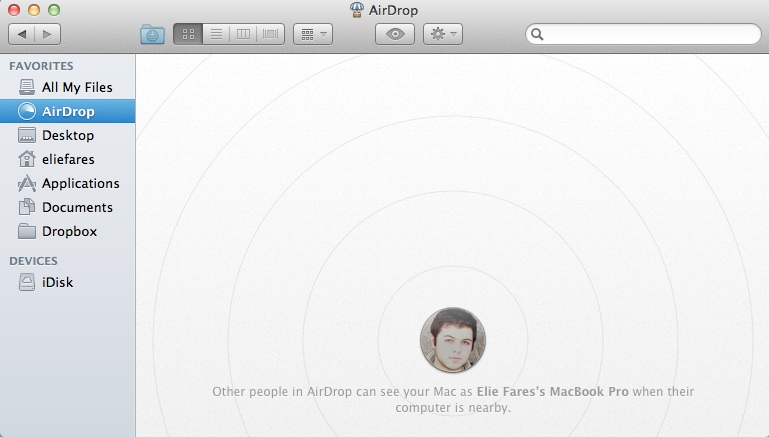
Ever wanted to share something with someone and you were out of a flash drive or any way to send it over to them? Well, if you’re on the same Wi-Fi network, OS X Lion has the solution in the form of Airdrop.

Found in all the windows of “Finder” on the side, airdrop allows you to share that file with any Mac in the vicinity.
4 – Full Screen:

This update also boasts the ability to go full screen in many apps: iTunes, iPhoto, Garageband, etc…. Whenever you go full screen with an app, you can use a three-finger scroll sideways to switch between all full-screen apps running. I have yet to fully use this capacity, simply because I don’t feel like it’s really needed. What’s the point of looking at iTunes (or any other app) full screen?

Moreover, a simple click on the escape button wouldn’t take you out of full screen mode. You have to hover your mouse to the top of the page in order for a blue box with two reduction arrows to appear. Clicking on that takes you back to normal screen mode.

Interestingly, going full screen in Quicktime automatically transfers you to a new desktop so you can keep the movie you’re watching at full screen when you need to pause it to work with other things. However, I still don’t get how to make Quicktime work as my media player after connecting my Macbook Pro via HDMI to my TV so I’ve resorted to VLC instead.
5 – Launchpad:

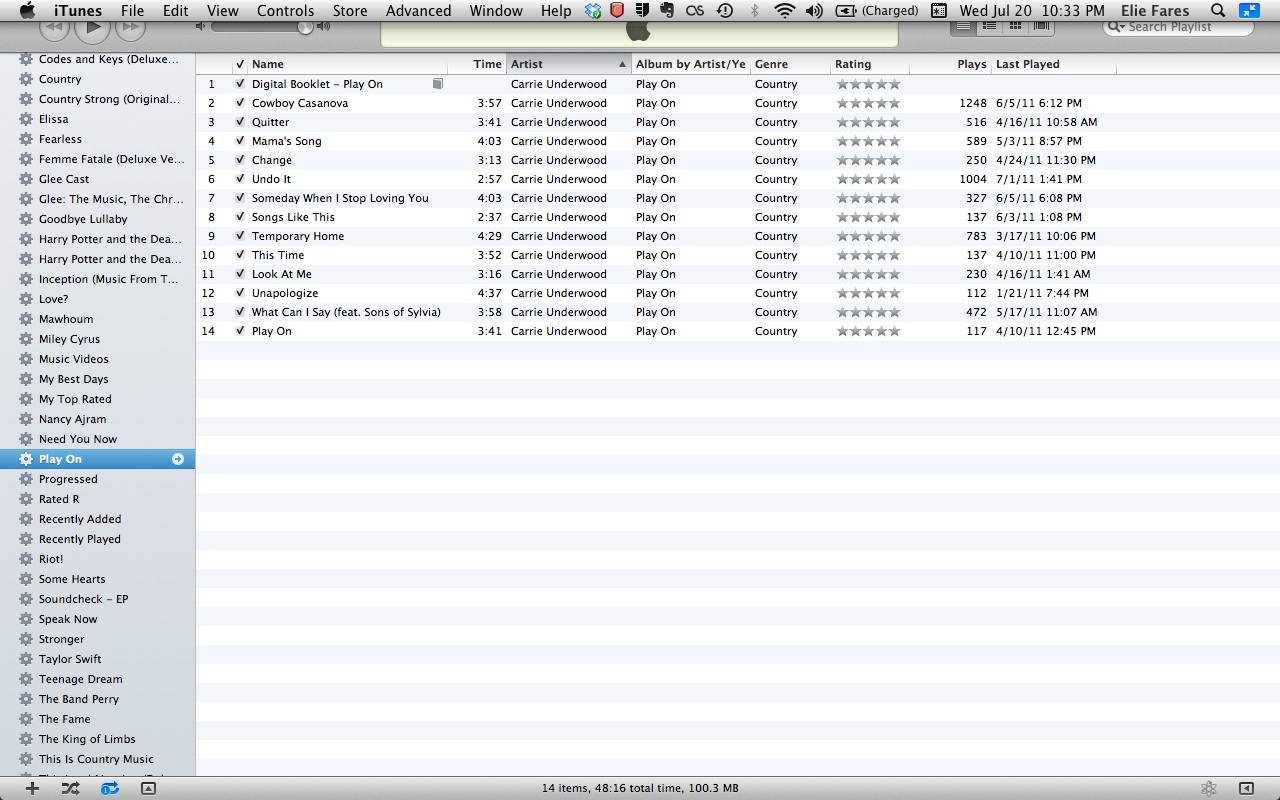
Out of the new additions I have chosen to discuss in this overview, I’m the most disappointed by Launchpad. Why? Because it’s practically useless. A three-finger squeeze launches launchpad from which you can launch any app.

As you can see, it has been built in a way very similar to how apps are presented on an iPad’s screen. Even folders are the same. But I’m used to launching an app simply by clicking on my “Applications” folder in the dock and clicking for the app. With Launchpad, it’s one extra step for me to do that.

Installing any app will from the Mac App Store will appear as a “download bar” underneath the Launchpad icon, similar to what happens on an iOS device.

Launchpad is basically the most obvious of bringing iOS to OS X. But it pales in comparison to the other additions in OS X Lion.

OS X Lion has many other tweaks that are not discussed here. Preview has its interface changed, as well as the Mail app, which now allows threaded conversations as well as flagging emails in various degrees of importance. You can no longer change the size of icons and folders automatically rearrange to limit empty spaces between contents.

Is OS X Lion a must-have update? I’m inclined to say it’s no. But I personally advise everyone to update because soon enough Apple will start to iron out the kinks. OS X is a very, very strong operating system that will stay a market leader for long. Windows has a lot of catching up to do and even though OS X Lion is not a giant leap forward, it opened up even more grounds on Windows. After all, by combining elements from Mac OS X with iOS, although far from perfect, has taken the user’s mac experience to a whole new level. Mac OS X Lion gives you the feeling that you are working with a futuristic device, even though for example my Macbook Pro is almost 2 years old.

Apple is known not to release a product unless they’re sure it’s the best they can offer at the moment. Sure, they’ve had missteps. But OS X Lion is not one of them. And for $29.99 and the ability to install it on any mac computer you own, it sure is a bargain. So should you buy it? Hell yes. It offers enough for $29.99 to make the must-have update question I asked earlier somewhat irrelevant.

Our Experience With iOS 5

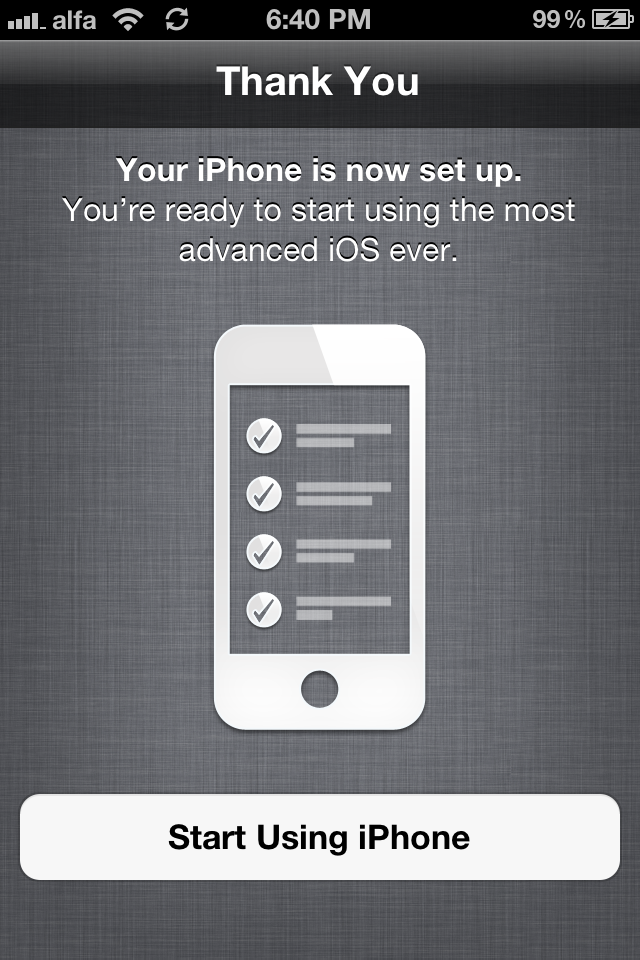
Ever since Apple unveiled the new iOS 5 features about two weeks ago, I was itching to try them out. The beta was released and I had refrained from updating, thinking it was too buggy. But I couldn’t hold out anymore and I took the plunge. And I have to say, it was a good decision on my part.

I am the type of people who hate jailbreaking because I don’t see its use. I was forced to jailbreak my original iPhone in order to be able to use it in Lebanon and felt its performance get affected a lot. Therefore, I refrained from doing so to all iPhone updates that I purchased.

And even though iOS had many shortcomings (no operating software is perfect after all), I felt it was enough considering what I used of the phone. Flash-based games or websites are almost useless to me and, well, I felt the negative aspects about iOS could be compensated for by the wide array of brilliant apps, most of which were free, as well as the top-notch hardware that was running the OS.

I’m almost against people who like to jailbreak just to get cracked apps for free. I’d rather pay $0.99 and keep my phone’s operating system intact, but that’s just me.

This post was written with extensive input from a friend of mine that I met because of iOS 5. David Schoborg’s input will be present along with mine, although his will also hold comparison to the other leading platform: android.

David:

Like Elie, when I heard about new feature set in iOS 5 I was quite excited. I have a pretty extensive history with Android, and was pushed into this Apple universe when my wife wanted a smartphone. I’m not just an end user, I’m a power user. I’m that guy that gleefully flashed ROMs, kernels and alike on a plethora of Android phones. Bricking my phone? A risk worth the reward. Yep, I admit it, I’m a gadget geek.

Her desire to join me in the age of mobile presented a bit of a problem. Was I going to be able to survive in, what I considered at the time, this dumbed down experience?

All in all, I’ve had a great experience with my iPhone and iPad. Great applications, great hardware, best in class battery life, but lacking in one major area: the notifications are the worst I’ve ever had to deal with!

SMS? I’m being interrupted. IM? Again, interrupted. Let me tell you, there’s nothing like having your camera app ready to go, getting ready to capture that perfect picture and being interrupted with an IM reminding you to pick up milk on the way home. Trust me, it stinks.

So, I resulted to jailbreaking my phone, because it was so bad that I couldn’t deal with it, especially after using Android, and enjoying unobtrusive notifications.

Then came iOS 5. I’ve been running it for 2 weeks, jailbreak free, and the little things here are what make it great. I’m going to share some of my experience with iOS 5 and compare it to my Android experience.

– iMessage:

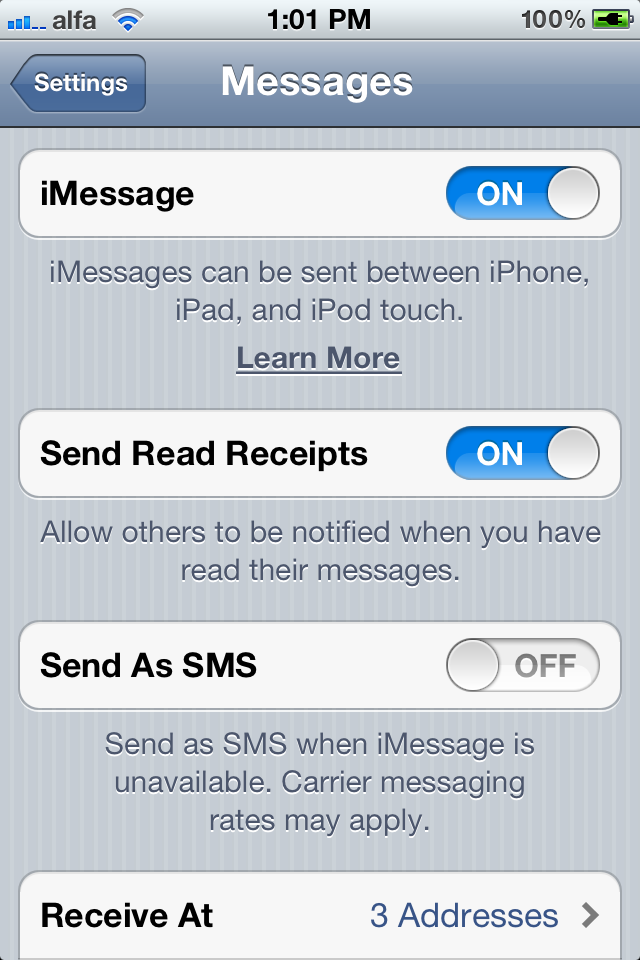
I cannot stress how easy and smooth the whole iMessage process has been. You go into messages in settings, set it up with a simple click (yes, it’s an on/off button) and a few minutes later, you’re good to go. You can enable iMessage to work on many IDs: phone number, different emails and you can also set your caller ID to be any of those verified emails or phone number.


And then you just chat with whoever you want. In my case, I’ve been extensively chatting with Dave (our iMessage thread has like 500 messages so far). And the whole thing goes without a hitch (unless you factor in Lebanese internet but that’s not Apple’s fault).
This is basically how iMessage works. You type in the name of the person you want to text and the iPhone checks if this person’s number or email is registered in Apple’s database as a user of iOS 5. If the number or email check out, the phone switches to iMessage. It’s that simple. No extra iMessage application, it’s all integrated.

– Notifications:

Elie: Unlike popular belief, I was never bothered by the iPhone’s notification system. It could be that I never used – nor do I intend to – android but, even though it was intrusive, I went without a notification system for over two years with my original iPhone.
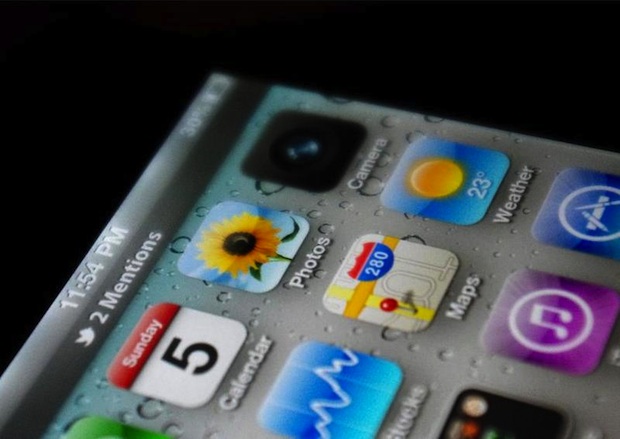
But when I started using iOS 5 along with its new notification system, my whole use of the iPhone got so much better. I no longer had to press the “dismiss” button whenever someone texted while playing Doodle Jump or Whatsapping someone.
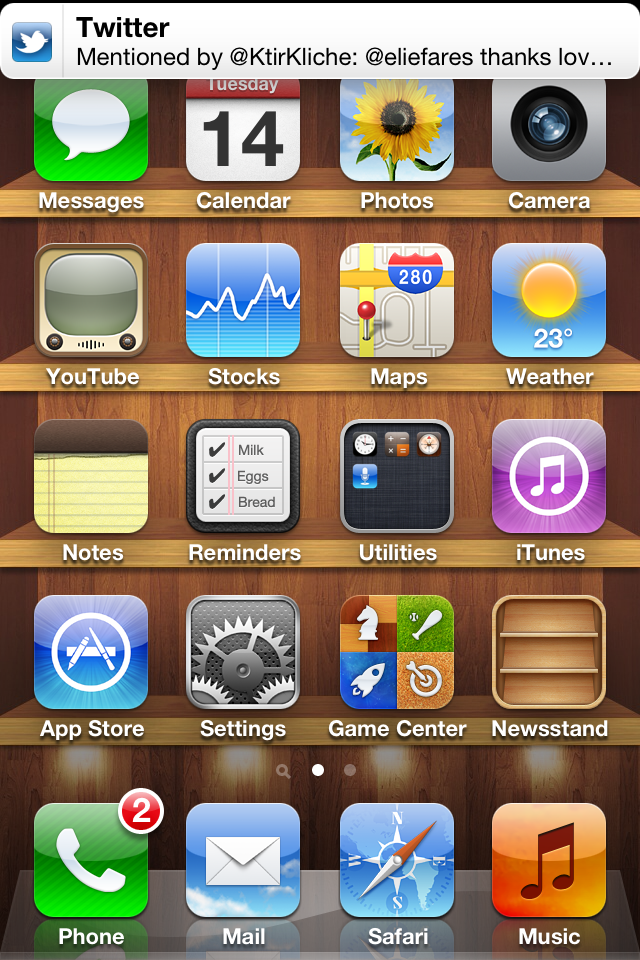
There was simply a thin bar at the top of the screen with whatever notification I got inside it.

And if I missed the notification, I could pull a notification center screen from the top by dragging it down and it would have all my notifications there. I could simply click on one of them, go to the corresponding app and respond accordingly.

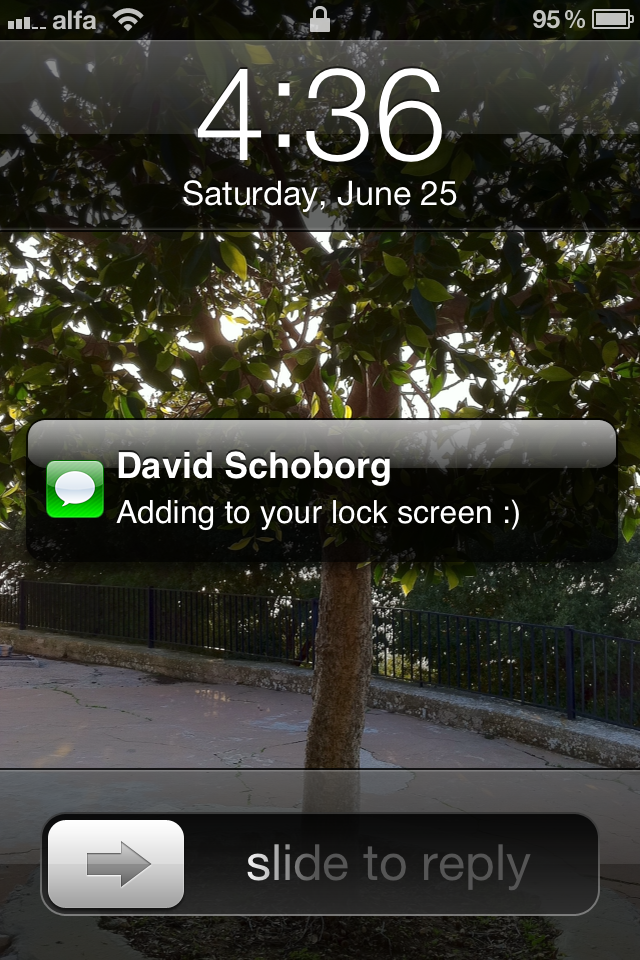
Moreover, the lockscreen allows you to answer specific notifications by sliding across them.

And David agrees with me as well.

David: In all honesty, iOS does a better job than Android here. The concept is similar to Android, creating a notification pulldown from the status bar where you can see what’s occurred, and deal with it on YOUR terms. You drag down from the bar, and it’s all there.


What I like about this approach more is that the notifications give you more information that what you currently get from Android. You can read the first few lines of an email, message, or that alert from CNN that used to interrupt your round of Angry Birds, can now be read and dealt with at your leisure.

Also, you have a couple of Apple provided widgets (Stocks, Weather) that are pretty helpful as well. Weather is finally geolocation aware, so no going in and switching cities around to figure out what the weather is going to bring.

Ultimately I hope Apple gives developers access to produce widgets as I could see this being really useful for them in providing more functionality for their apps.

And what’s even cooler? You get this on the lock screen too.


You can slide to read the incoming notification, or deal with it later. No more having to open the email application to see what’s been delivered. This is something Android doesn’t offer currently, and is very helpful to see what’s happened, without having to unlock the phone.

PS: The style of notifications you get on the lockscreen for receiving a text has changed with iOS 5 beta 2 to something that looks like this:


– iCloud:

I have yet to fully harness the powers of iCloud, mostly because of our ridiculous internet. But I can see the potential. The other day, I downloaded the Lebanese iPhone camera app Dermandar on my Mac. Then, moments later, I saw that it was downloaded on my iPhone as well. I also set up an @me email, which I have yet to use extensively as I’ve gotten way too used to gmail for my liking. But, hate or like iCloud, the potential is definitely there. How Apple advances with this will determine whether this is something people will love or not.

David, on the other hand, isn’t as positive about iCloud.

David: Apple also introduced iCloud with iOS 5. iCloud promises “cloud services done right.”

I’ll have to disagree. Don’t get me wrong, there are some really nice additions, but I feel it ultimately falls short.

Having contacts, calendars, and documents able to be backed up and synced in the cloud across all of your iDevices is great. However, anyone really interested in this is already using Google via their mobile sync for iOS to accomplish this task.
Photostream is my personal favorite added feature. It’s similar to Google, backing up your photos in the cloud, but I just love the feature of adding a folder to the PC or Mac and the photos just show up. (They sync when you connect via WiFi and then are permanently backed up on your personal computer. The last 1000 photos are backed up in the cloud, unlimited on your PC/Mac.)

iTunes in the cloud is basically allowing you to re-download the songs you’ve already purchased to your other devices on the account, or back to your phone. Let’s be honest, this should’ve been in place already. It’s nothing more than a glorified history of your music purchases.

Where I think Apple really missed the mark is with the iTunes Match service. For $24.99 a year, anything in your iTunes library on your PC/Mac is able to be accessed in the “cloud” via your iDevices, even stuff you haven’t purchased from Apple. Sounds great! (I have over 20,000 songs that could potentially be offered to me even though I’ve only purchased literally 30 of those through iTunes)

Here’s the problem.

Let’s say you are out and about with your iPhone. You look at the selection on your phone, nothing’s doing it for you. So you reach out to iTunes Match to grab a song off the cloud that’s on your library at home. Stream it right? Unfortunately that’s not the case. You have to fully download the song. Compared to Google Music (beta) and Amazon’s Cloud Player, it’s really a disappointment in comparison.

I, personally, see David’s point with iTunes Match. But we need more info about the service to fully judge it. If Apple will in some way “iTunes-ize” all our songs and we get to keep them after the year is up, then I think iTunes match is a great service. If the songs get deleted after a year, then I think streaming them would have been a much better option.

Other notable additions include the total integration of twitter in the iOS which I’ve only used so far to tweet a few pictures. Wireless syncing is also there and it has been activated in beta 2, as were OTA updates.

However, something that wasn’t advertised and that I found was interesting, especially while making calls, was a pop-up screen about how unsecured my call was.

Not sure if this is only exclusive to my Lebanese carrier but I figured it’s worth to note the existence of such a thing.

David: WiFi Syncing and No PC set up are in iOS 5 as well, and honestly, these are long overdue: a nice enhancement, but nothing groundbreaking. Being able to back up into the cloud and restore your settings and app data is great too, but again, a little late to the party.

All in all, I think iOS 5 does somethings better than Android, it’s also falls short in some, particularly the cloud offerings.

iOS 5 brings some much needed enhancements, offer some really cool new features and shortcuts (You can now get to the camera from the home screen by a double click of the home button. Yay!), and bests Android in notifications.

It’s a worthy upgrade that all of you should jump on as soon as you can.

And here it is folks, our experience with iOS 5 so far. And as David said, the moment the update is available for the public, you absolutely need to update! It’s that awesome!

David can be contacted via his twitter account or his Facebook account.

Harry Potter and the Deathly Hallows Part 2 – Trailer

Apple has released a new trailer for the upcoming and final Harry Potter movie. And I have to say, if you thought the first trailer was epic, wait till you watch this one.

It’s also the last Harry Potter trailer ever. It’s the end of an era, my friends. And this makes me sad. I grew up reading these books. Hopefully Pottermore will sustain us, though.

Less than a month to go, Potterheads. July 14th. I’m sure you already have your calendars marked. And quoting the everwise Rebecca Black, “we so excited!”


Apple Now Selling Unlocked iPhones in the U.S.

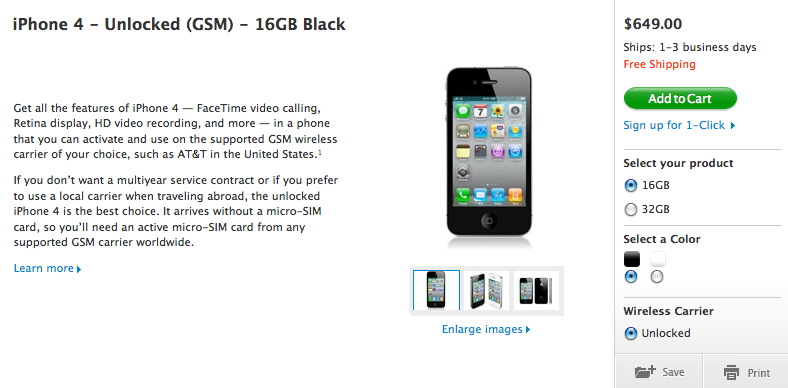
Rejoice iPhone lovers. Apple is now selling unlocked iPhones in the US, which makes buying them a whole lot cheaper and easier. How so? Most of us have family/know someone in the U.S. And most iPhones we use originate from there, previously requiring the user in other countries to “illegally” unlock their iPhone in order to use it. Well, those hurdles no longer exist. And I am very happy about that.

Just launched on the online Apple Store, the iPhone 4 is selling at $649, without taxes. Factor in a maximum of 10% in taxes and you get a device that costs $700, much less than the price Lebanese retailers charge or other countries around the world ask you to pay.

Although the price tag is a little higher that a contract-free US iPhone, it’s definitely worth it. I know where I’m buying the upcoming generation iPhone from.

Now the question that begs itself: will those who bought a contract-free iPhone be allowed to have their phones legally unlocked?


iOS 5 Rumor Roundup

With the WWDC set in less than 12 hours, I have decided to make a rumor round-up of what to expect in the upcoming update of iOS: iOS5

1) better notification system and widgets:

The iOS’ notification system has been the center of criticism since it was implemented. Many felt it was intrusive and not practical. Moreover, many feel the interface has gotten bland after 4 years of looking at pretty much the same home screen design. iOS 5 is expected to introduce a better notification system, as well as widgets, such as the weather app updating it’s icon (yes, I’m sick of seeing it sunny when it’s snowing outside).

2) Deep Twitter integration

With twitter launching its own photo-sharing service in the coming weeks, Apple is expected to integrate twitter in all sides of its upcoming iOS. It will allow users to share things directly from the iPhone/iPad/iPod touch to their twitter accounts.


3) Automatic App updates

A leak with iTunes wording has revealed that Apple is introducing an automatic update system for the apps on the iDevice, which you can turn off. What’s this option supposed to do? Well, as the name implies, it automatically updates your application so you don’t have to constantly check for updates via your iDevice or computer and with iOS being the unparalleled #1 platform when it comes to apps, this would definitely be handy.

4) iDevice Support

As with previous updates, iOS 5 is expected to have certain options not available for the iPhone 3GS and the third generation iPod touch. The iPhone 4, iPad and iPad 2 should have all iOS options available to them, as well as the upcoming iDevice updates, set to come in September.

Apple will also introduce the final version of the new Mac OS: OSX Lion, along with its new service: iCloud, which will allow users to stream purchased music via 3G or wireless, without syncing them to their device.

Regardless of what actually comes true, for any Apple fan, the WWDC is a very exciting time because it shows what this ingenious company is up to. And it’s always great!