Mac OS X Lion has just been released and these are my thoughts of the new Mac operating system that I’ve been using for a couple of weeks now.
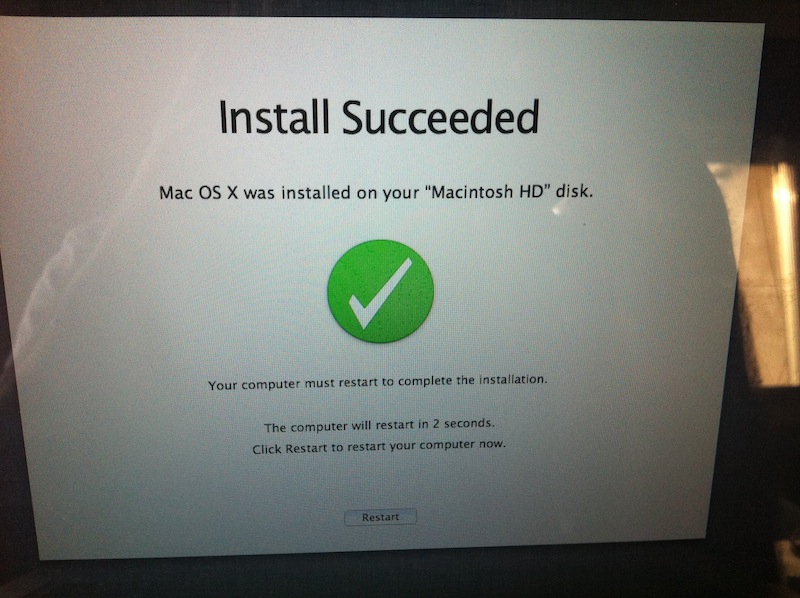
Installing Lion is a very easy task. You just run the installer that you download, input your administrator password and the OS automatically installs. Of course, it’s always advisable to back up your data beforehand since you never know what might go wrong but most probably nothing will.
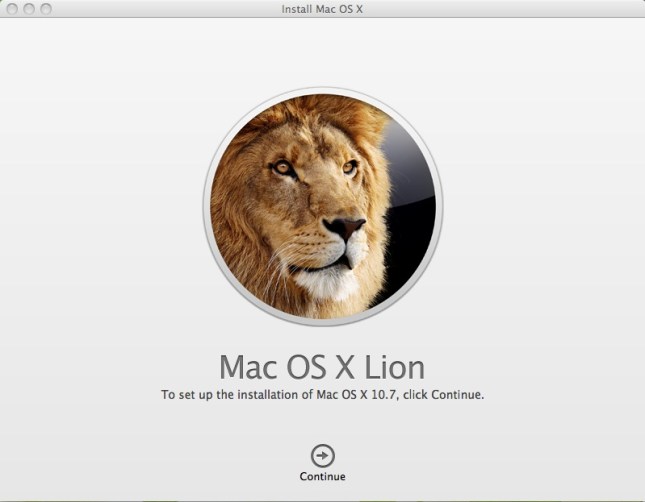
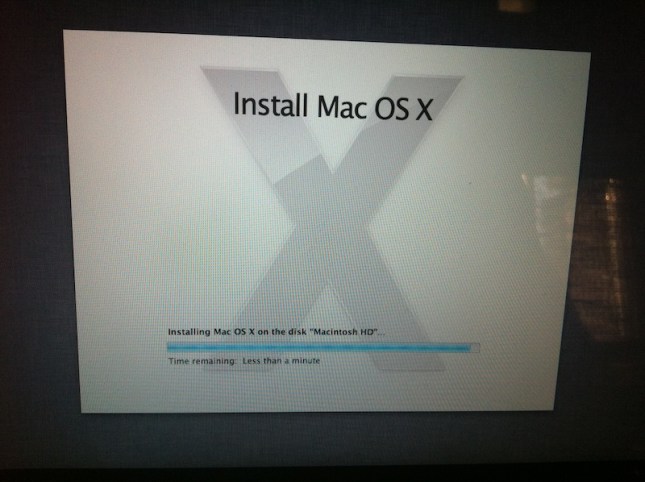

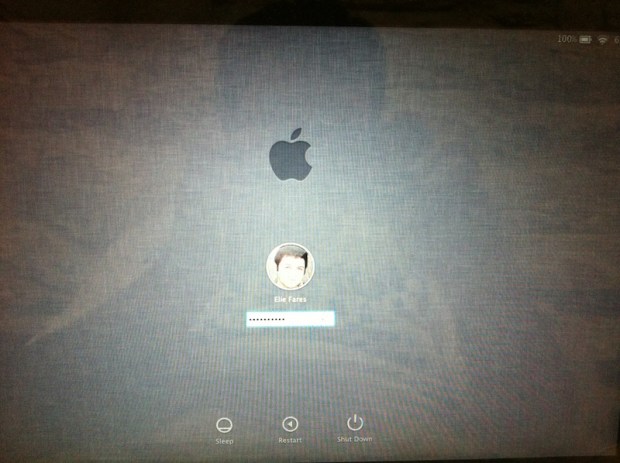
Once the installation is done, you’ll be taken to a newly designed welcome screen where you enter your password and access your desktop.
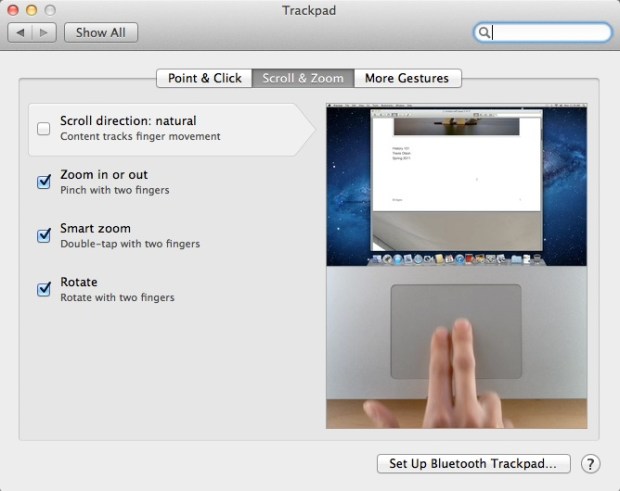
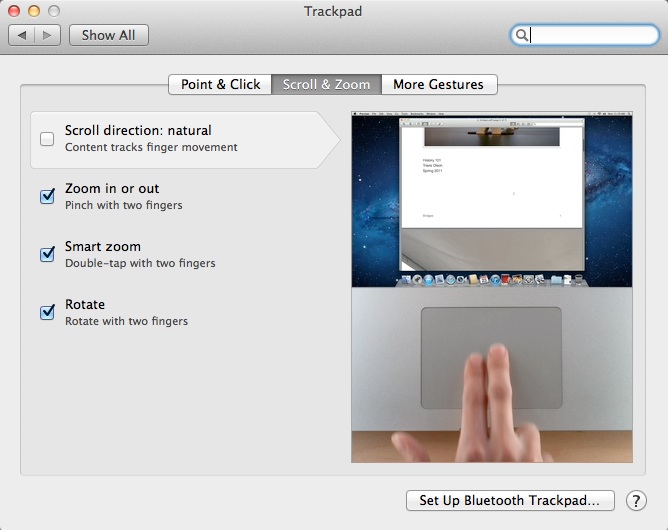
The first thing Lion welcomes you with is an introduction its new way of scrolling. However, Apple has decided to set the scrolling to “natural,” which, like the iPad, is actually the reverse of what you’re used to: scrolling up takes you down and vice versa. However, unlike the iPad, your Mac does not have a touch screen making the scrolling as set by Apple not “natural” at all. So I went to system preferences and changed it.
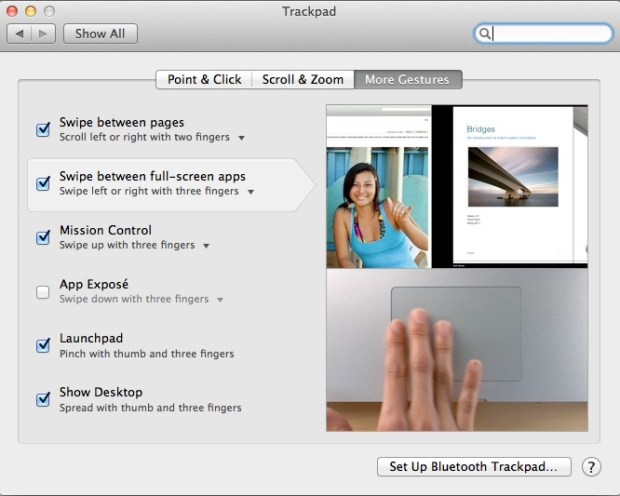
OS X Lion boasts many addition and tweaks that are truly great. But I think there are five which can be considered as the highlight of this update: Resume, Mission Control, Airdrop, Full Screen and Launchpad.
1 – Resume:
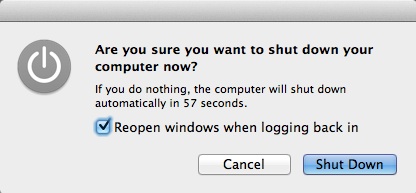
Have you ever shut down your laptop and regretted it because you didn’t have something saved? Well, with OS X Lion, you don’t need to worry about that anymore. Whenever you turn on your mac after shutting it down, you will be presented with the exact same state you left your mac in prior to shut down. Did you have iTunes, Twitter, Firefox and iPhoto running? They’d still be running and open to the tabs you were browsing, the tweets you were seeing and the songs you were selecting.
I’m the type of people who don’t like to turn off their laptops simply because I find the time it takes for them to boot and start launching my apps too long. With OS X Lion, I boot my Macbook Pro and before I know it, it’s as if I never turned it off. That is truly this update’s highlight. Sure, it’s not the most dazzling addition but in the long run, it’s the most useful one.
 You can opt out of it before shutting down. But why would you?
2 – Mission Control:
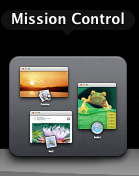
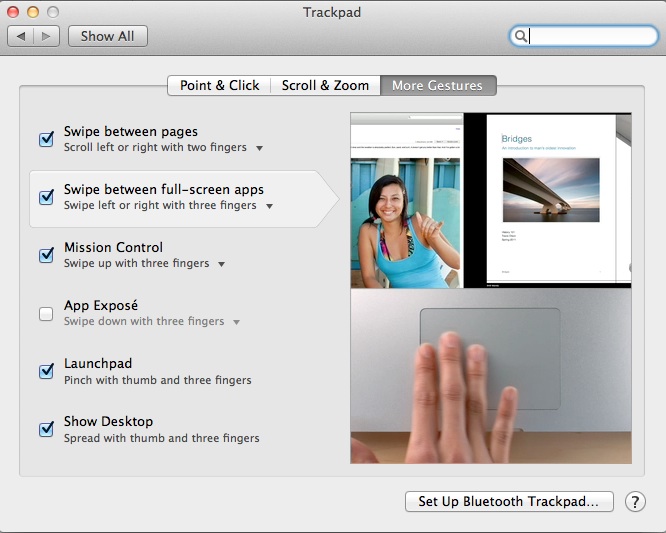
The negative thing about mission control is that it takes time to get accustomed with the new finger gestures. I had my mac set up for four-finger gestures: up removed all windows from my desktop, down took me to expose. With OS X Lion, the four-finger gestures are removed entirely and replaced with three-finger gestures.
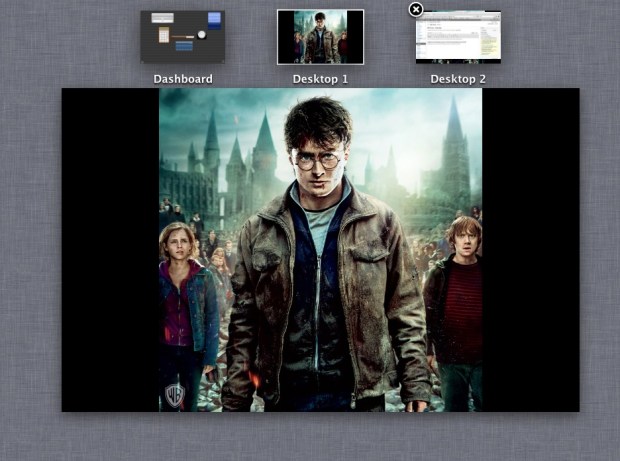
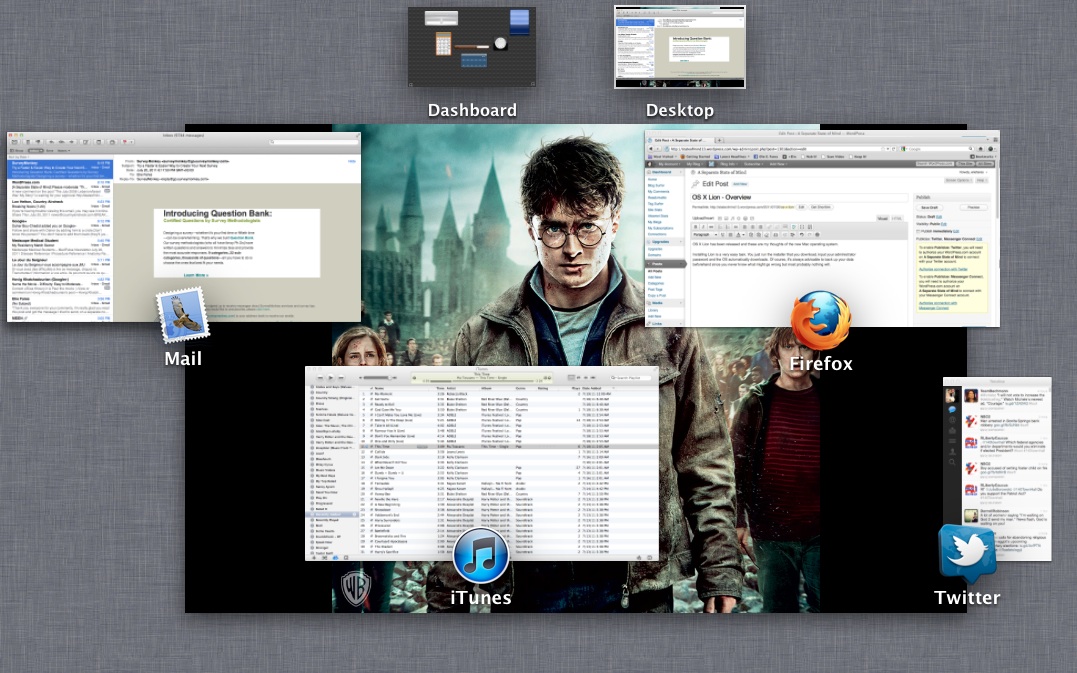
Going up with three fingers + thumb launches Mission Control.
Don’t mind my Harry Potter wallpaper. The movie is simply epic after all.
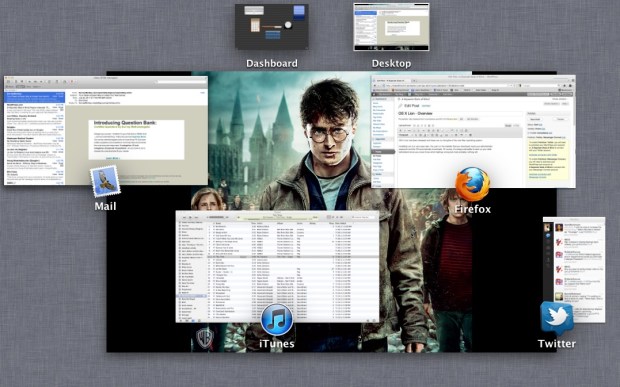
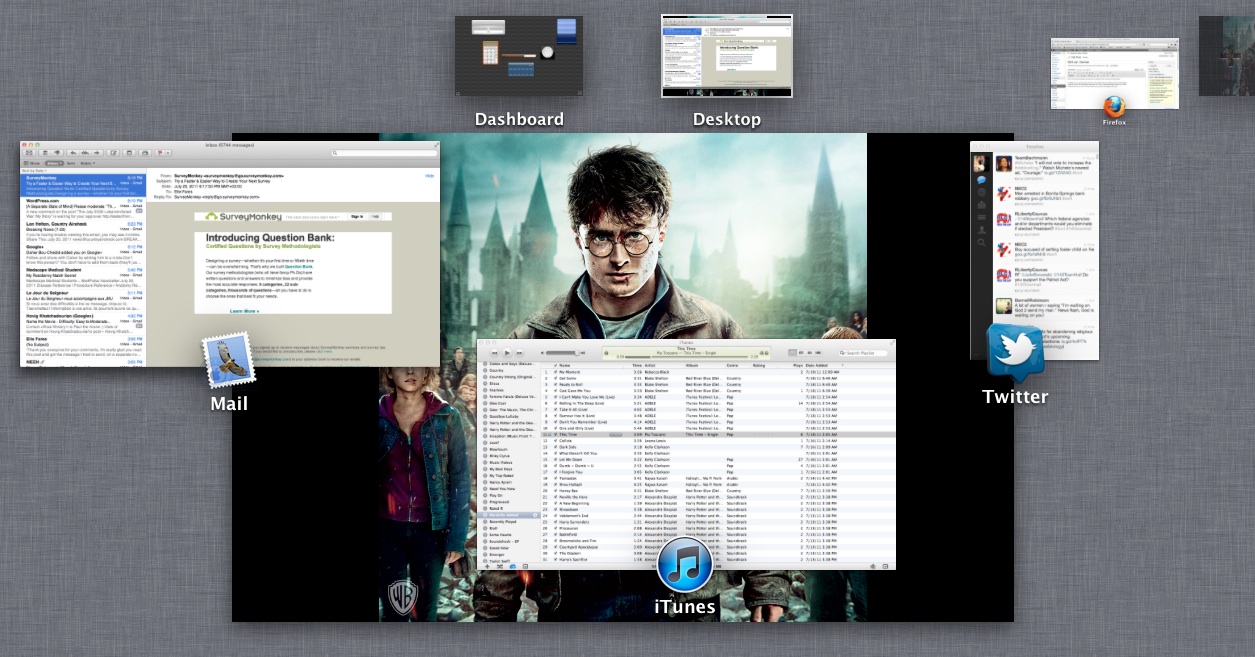
What Mission Control does is show you all of the windows and apps you’re working with, allowing you to organize them.
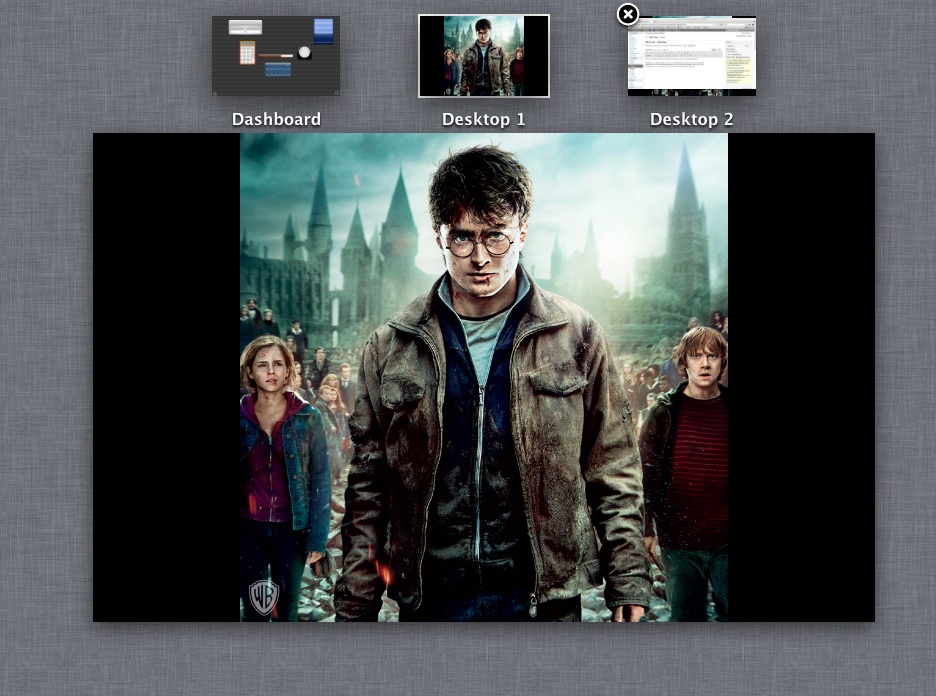
You can drag for example your internet browser and make a new desktop out of it.
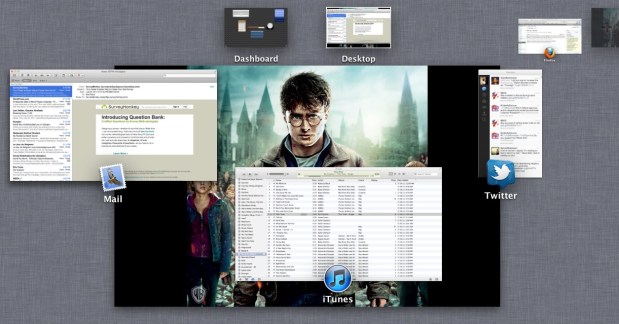
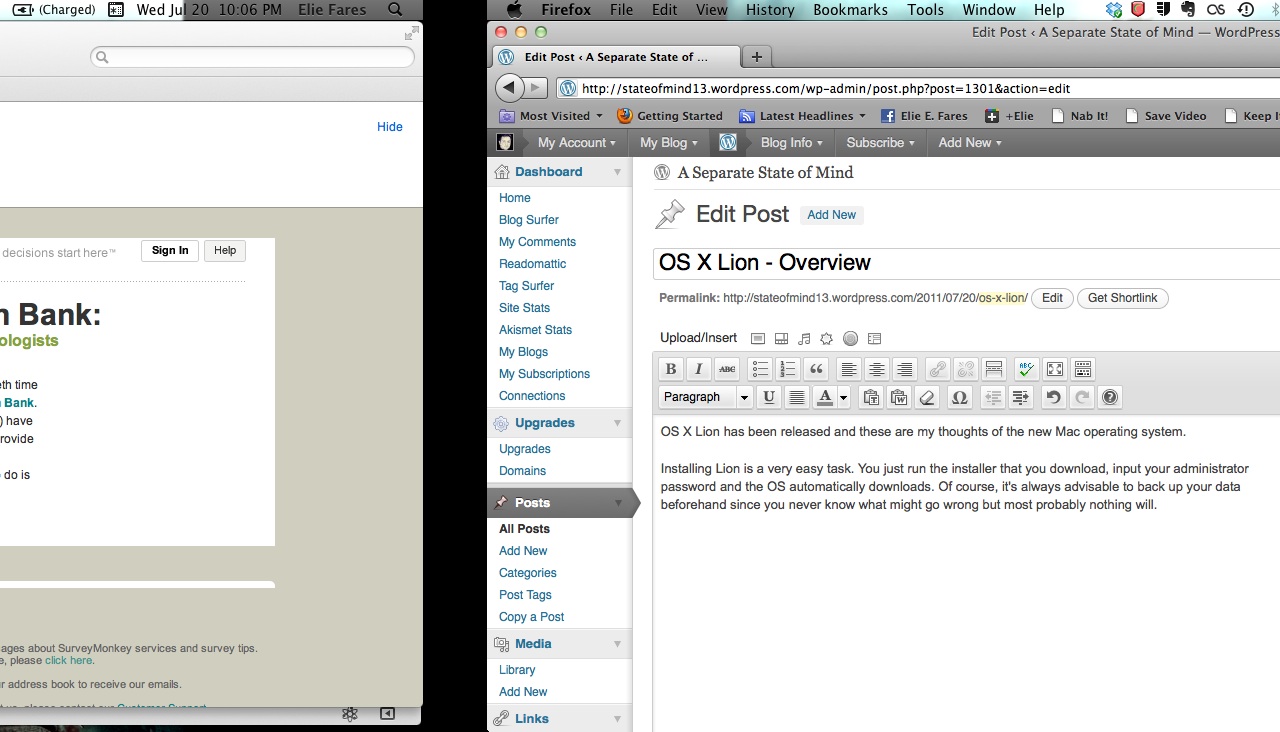
This new desktop can now be accessed via a two-finger swipe to the left (or right, depending on where you are).
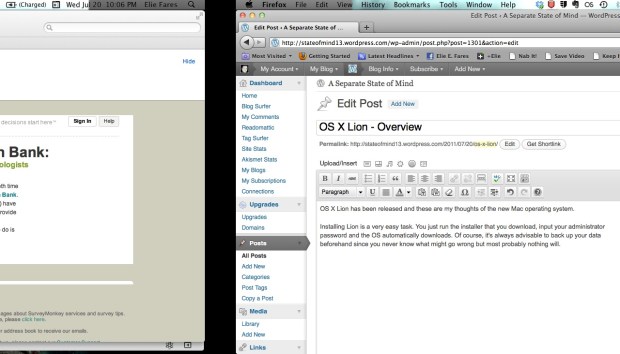

Mission Control is highly useful when you want to relieve yourself of clutter. Whenever you find yourself overwhelmed with windows, simply drag a few of them into new desktops and go to those desktops to finish your work. When you’re done, hover your cursor over the new desktops and you’ll be able to close them.
3 – Airdrop:
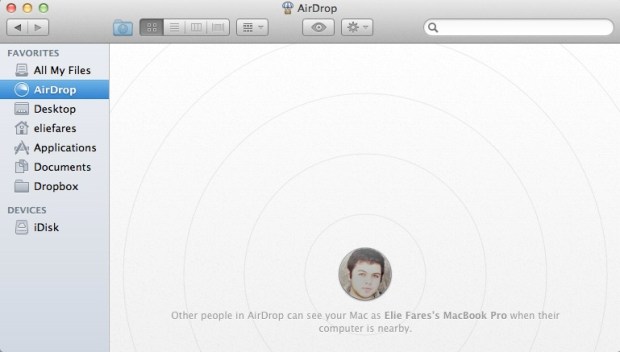
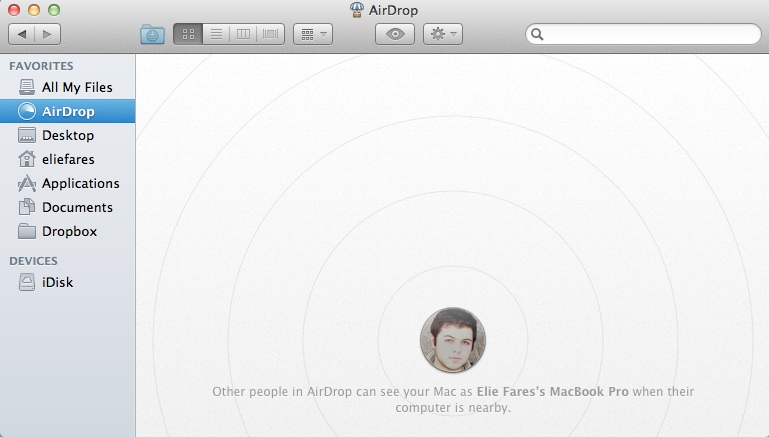
Ever wanted to share something with someone and you were out of a flash drive or any way to send it over to them? Well, if you’re on the same Wi-Fi network, OS X Lion has the solution in the form of Airdrop.
Found in all the windows of “Finder” on the side, airdrop allows you to share that file with any Mac in the vicinity.
4 – Full Screen:
This update also boasts the ability to go full screen in many apps: iTunes, iPhoto, Garageband, etc…. Whenever you go full screen with an app, you can use a three-finger scroll sideways to switch between all full-screen apps running. I have yet to fully use this capacity, simply because I don’t feel like it’s really needed. What’s the point of looking at iTunes (or any other app) full screen?
Moreover, a simple click on the escape button wouldn’t take you out of full screen mode. You have to hover your mouse to the top of the page in order for a blue box with two reduction arrows to appear. Clicking on that takes you back to normal screen mode.
Interestingly, going full screen in Quicktime automatically transfers you to a new desktop so you can keep the movie you’re watching at full screen when you need to pause it to work with other things. However, I still don’t get how to make Quicktime work as my media player after connecting my Macbook Pro via HDMI to my TV so I’ve resorted to VLC instead.

5 – Launchpad:

Out of the new additions I have chosen to discuss in this overview, I’m the most disappointed by Launchpad. Why? Because it’s practically useless. A three-finger squeeze launches launchpad from which you can launch any app.
 As you can see, it has been built in a way very similar to how apps are presented on an iPad’s screen. Even folders are the same. But I’m used to launching an app simply by clicking on my “Applications” folder in the dock and clicking for the app. With Launchpad, it’s one extra step for me to do that.
 Installing any app will from the Mac App Store will appear as a “download bar” underneath the Launchpad icon, similar to what happens on an iOS device.
Launchpad is basically the most obvious of bringing iOS to OS X. But it pales in comparison to the other additions in OS X Lion.
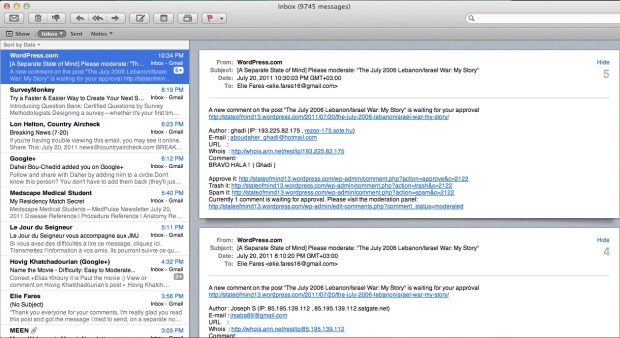
OS X Lion has many other tweaks that are not discussed here. Preview has its interface changed, as well as the Mail app, which now allows threaded conversations as well as flagging emails in various degrees of importance. You can no longer change the size of icons and folders automatically rearrange to limit empty spaces between contents.

Is OS X Lion a must-have update? I’m inclined to say it’s no. But I personally advise everyone to update because soon enough Apple will start to iron out the kinks. OS X is a very, very strong operating system that will stay a market leader for long. Windows has a lot of catching up to do and even though OS X Lion is not a giant leap forward, it opened up even more grounds on Windows. After all, by combining elements from Mac OS X with iOS, although far from perfect, has taken the user’s mac experience to a whole new level. Mac OS X Lion gives you the feeling that you are working with a futuristic device, even though for example my Macbook Pro is almost 2 years old.
Apple is known not to release a product unless they’re sure it’s the best they can offer at the moment. Sure, they’ve had missteps. But OS X Lion is not one of them. And for $29.99 and the ability to install it on any mac computer you own, it sure is a bargain. So should you buy it? Hell yes. It offers enough for $29.99 to make the must-have update question I asked earlier somewhat irrelevant.













 A Separate State of Mind | A Blog by Elie Fares